Protect files
Protect files before you share them
Three free tools for the moment before you press send: lock a PDF with a password, put files in an encrypted zip, or stamp a watermark on every page. They run in your browser, so the file stays on your device.
Which protection fits which job
| You want to | Use | What it does not do |
|---|---|---|
| Stop anyone without the password from reading a PDF | Password-protect the PDF | Once someone has the password, they have the whole file and can pass both on. |
| Send several files, or files that are not PDFs, behind one password | Encrypted zip | The person needs an app that opens encrypted zips. File names inside can be visible. |
| Mark a document as a draft, or as confidential to one reader | Watermark the PDF | A watermark discourages copying. It does not stop it, and it can be cropped out of a screenshot. |
| Share a document with some names or numbers removed | Redact the PDF | Finds emails, phone, ID and card numbers for you, even on scans, but check every page: names and handwriting can be missed. |
| Take the file back later, and know whether it was read | Share it as a link | A link needs an internet connection to open. |
Why the tools run in your browser
A tool that protects a file should not need a copy of it. These three load their code into the page and do the work on your device: the PDF tool uses qpdf compiled to WebAssembly, the zip tool uses zip.js, and the watermark tool uses pdf-lib, all open-source libraries. You can check this yourself: open your browser's developer tools, watch the Network tab, and process a file. No request carries it anywhere.
Can you password protect a folder?
Not directly, on Windows or on a Mac. Neither puts a password on an ordinary folder, so the usual answer is to put the folder inside something that can be locked.
On Windows 10 and 11
Put the folder in an encrypted zip: add its files to the zip tool, or use the free 7-Zip app, choose AES-256 and set a password. Windows Pro editions also have an option called Encrypt contents to secure data, under the folder's Properties, then Advanced. That ties the files to your Windows account rather than to a password, so it protects them on your own computer but not once they are copied or sent.
On a Mac
Open Disk Utility and choose File, then New Image, then Image from Folder. Pick the folder, set Encryption to 256-bit AES and type a password. The result is a .dmg file that asks for the password every time it is opened. It only opens on a Mac, so for anyone on Windows use an encrypted zip instead.
Everyday habits that protect your files
- Turn on device encryption: BitLocker or Device Encryption on Windows, FileVault on a Mac. A lost laptop then gives nothing away.
- Use a different password everywhere, kept in a password manager, and two-step sign-in on your email and cloud storage.
- Keep a backup that is not always connected, so a mistake or ransomware cannot reach both copies.
- Share less, for less time: send a link with an expiry date instead of an attachment, and delete shares you no longer need.
Protecting the file is half of it
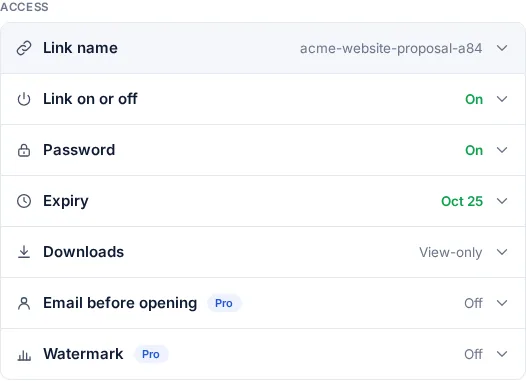
A password or a watermark travels with the file, which is the point, but it also means that once the file is sent you cannot change your mind. If you need to stop access later, change who can open it, or know whether it was opened at all, share it as a link instead of an attachment. Secure file sharing explains the options: a password on the link, an expiry date, view-only, and an email when it is opened.
FAQ
Protecting files: common questions
Is it safe to protect a file with an online tool?
It depends on where the work happens. Many online tools upload your file to their server, encrypt it there and send it back, so a copy passes through someone else's computer. The three tools here do the work inside your browser, so the file and the password never leave your device.
How strong is the password protection?
The PDF and zip tools use AES-256, the encryption standard the US government approved in FIPS 197. The weak point is the password, not the encryption: a long passphrase of four or more unrelated words is far harder to guess than a short word with a number on the end.
Can I protect a Word, Excel or image file?
Yes. Put it in an encrypted zip, which works for any file type and for several files at once. To keep the formatting of a Word or Excel file and lock it, save it as a PDF first and use the PDF password tool.
What if I forget the password?
The file cannot be opened, by you or anyone else, and no tool can recover it. Nothing is stored on FileSeen, so there is no reset. Keep the original file, or save the password in a password manager before you send the protected copy.
How do I send the password?
Never in the same email as the file. Send it another way: a text message, a phone call or a chat app. If someone gets into the recipient's inbox, they then find the file but not the key.
More from FileSeen