Convert files
Convert files in your browser, with nothing uploaded
Three converters for the files that get rejected most often: iPhone photos, piles of photos that should be one PDF, and PDFs that are too big to send. Each runs on your device.
Which converter fits the problem
| What went wrong | Use | What you get |
|---|---|---|
| A site or a Windows computer will not open a .heic photo | HEIC to JPG | Ordinary JPG files, one per photo, or all of them in one zip |
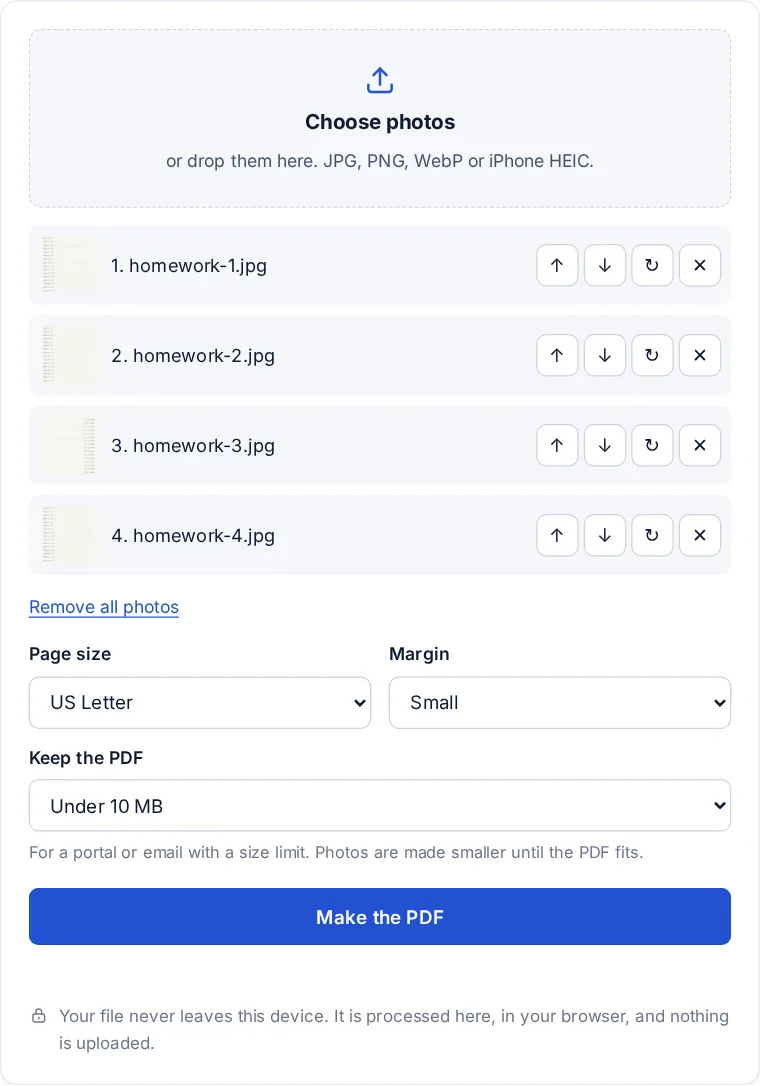
| An assignment, a form or a claim asks for one PDF, and you have photos | Photos to PDF | One PDF, one photo per page, in your order |
| A PDF is over an upload or email limit | Compress PDF | A smaller copy, made to fit the size you pick |
| A file opens on your computer but not on someone else's | Document viewer | The file shown in the browser, no app needed |
For students and teachers
School portals set their own rules: an upload limit chosen by the school, and often a list of accepted file types that leaves out .heic. That is how a photo of a worksheet taken on an iPhone ends up rejected the night it is due. The usual fix is two steps: convert the photos to JPG or straight to one PDF, and keep that PDF under the portal's limit. All three tools here run in the browser of a school Chromebook or a phone, with nothing to install.
Teachers can use the same tools in the other direction: compress a scanned handout before posting it, or turn photos of a whiteboard into one PDF for students who were absent.
For nonprofits
Grant portals and funder forms tend to have strict size limits and ask for single PDFs. Receipts, signed forms and site photos usually arrive from volunteers as phone pictures. Photos to PDF and Compress PDF turn those into something a portal accepts, without sending donor or client records through another company's servers.
Why the work happens on your device
Most online converters upload your file, process it on a server and send it back. These pages load the converter into your browser instead, using open-source libraries (pdf-lib, Mozilla's PDF.js and heic2any) served from FileSeen itself. You can check: open your browser's developer tools, watch the Network tab, and convert a file. No request carries it anywhere.
FAQ
File converter questions
Are these converters free?
Yes. No account, no daily limit and no watermark added to your files. The limits that exist come from the memory of your browser, which handles hundreds of photos or a few hundred PDF pages.
Are my files uploaded?
No. Each file is read by the page and converted on your device. Nothing is sent to FileSeen or anywhere else.
Do they work on a Chromebook or a phone?
Yes. They run in Chrome, Edge, Firefox and Safari, including on Chromebooks, Android phones and iPhones.
Can I convert a Word or Excel file here?
Not yet. To read one without the app, open it in the document viewer. To keep its layout for sending, save it as a PDF from Word or Excel.
What about protecting a file?
That is a separate set of tools: password-protect a PDF, make an encrypted zip, watermark a PDF or redact it.
More from FileSeen