Photos to PDF
Photos to PDF: combine pictures into one file
Add photos, put them in order, rotate any that are sideways, and download one PDF. Set a size limit and the photos are made smaller until the PDF fits. Nothing is uploaded.
How to combine photos into one PDF
One PDF from your photos in three steps
On a phone, the file picker lets you choose straight from your photo library.
-
Step 1
Add the photos
JPG, PNG, WebP and iPhone HEIC. Add more at any time.
-
Step 2
Order and rotate
Move each photo up or down, turn sideways shots upright, remove the blurry one.
-
Step 3
Make the PDF
One photo per page. Pick Letter, A4 or the photo's own shape, and a size limit if you need one.
Handwritten work, made into one file
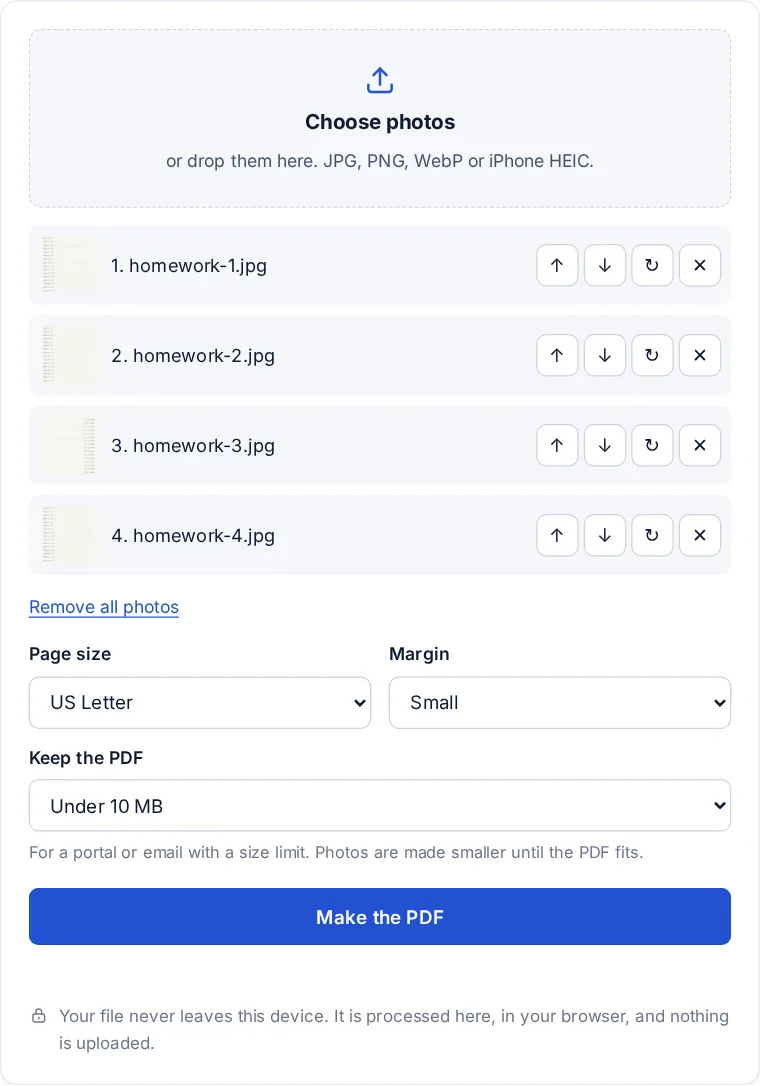
Most school portals want a single PDF, the format the Library of Congress describes as independent of the software and device used to open it, and a page of maths or a lab notebook usually starts as a few phone photos. Add them in the order the pages go, check each one is upright, choose US Letter so it prints like a normal page, and set a size limit that matches the portal. The tool keeps shrinking the photos, first their resolution, then their JPG quality, until the PDF is under the limit, and tells you the final size.
Photos that read well as a PDF
- Light from the side or above, never from behind the phone, so your own shadow does not fall on the page.
- Flat page, phone parallel to it. A tilted phone makes the bottom of the page smaller than the top.
- Fill the frame with the page, leaving a thin edge of table around it.
- One page per photo. Two pages in one photo come out too small to read.
The options, explained
| Option | What it does |
|---|---|
| Same as each photo | Each PDF page takes the shape of its photo. Best for pictures, not for printing. |
| US Letter or A4 | Every photo is centred on a standard page, turned to landscape when the photo is wider than tall. Best for anything that may be printed. |
| Margin | White space around each photo on Letter or A4 pages. |
| Keep the PDF under a size | Tries up to nine steps of smaller photos until the PDF fits. If even the smallest step is too big, it says so: then remove photos or split them into two PDFs. |
For nonprofits and offices
Receipts for an expense claim, signed volunteer forms and site photos for a grant report all arrive as phone pictures. One PDF per claim or report is easier to file and to send, and the size limit option keeps it within what email or a funder's portal accepts.
FAQ
Photos to PDF questions
How can I merge photos into a PDF for free?
Add them at the top of this page, set the order, and press Make the PDF. There is no sign-up, no watermark and no limit on how many PDFs you make.
How do I combine photos into a PDF on my iPhone?
Open this page in Safari, tap the box and choose Photo Library to pick the photos, then make the PDF and save it to Files. HEIC photos are converted on the way.
How do I scan multiple pages into one PDF?
Photograph each page, then add the photos here in page order. On an iPhone, the Notes app can also scan pages with its document scanner and save them as a PDF.
How to make a PDF of 100 photos?
Add all 100 here. Large phone photos make a large PDF, so set a size limit such as 25 MB; the tool shrinks the photos to fit. On an older phone, make two PDFs of 50 if the page slows down.
How to convert JPG to PDF on phone?
Open this page in your phone's browser, add the JPG and press Make the PDF. Android and iPhone both work, and the photo never leaves the phone.
More from FileSeen