Password-protect a PDF
Protect a PDF document with a password
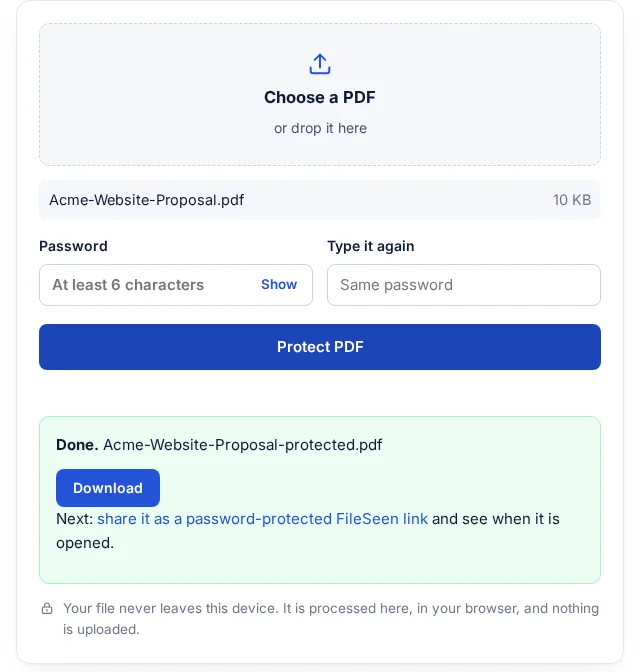
Choose a PDF, type a password, and download a copy that asks for that password before it opens. The encryption is AES-256 and it happens on your device: the PDF is never uploaded.
How to protect a PDF document with a password
Password protecting a PDF in three steps
Works on Windows, Mac, Linux, Android and iPhone, in any modern browser.
-
Step 1
Choose the PDF
Pick the file or drop it on the box. It is read by this page, not sent to a server.
-
Step 2
Set a password
Type it twice. Use at least 6 characters; a short sentence is easier to remember and harder to guess.
-
Step 3
Download the protected copy
Save the new file. Your original is not changed, so keep it somewhere safe.
What the password does
The protected PDF is encrypted with AES-256, the strongest encryption the PDF format offers. AES is the encryption standard published by the US National Institute of Standards and Technology as FIPS 197, and the encryption itself is done by the open-source qpdf library. Any PDF reader, such as the one built into your browser, Preview on a Mac, or Adobe Acrobat Reader, asks for the password before it shows a page. Without it the content cannot be read.
The same password also unlocks full rights, so whoever opens the file can print and copy from it. If you need to limit what a reader can do after opening, a password on a PDF is not the right tool: share the document as a view-only link instead.
Send the password separately
A password sent in the same email as the file protects nothing if that email is forwarded or read by the wrong person. Send the file by email and the password by text message or a phone call.
If you forget the password
There is no recovery. This tool does not keep a copy of your file or your password, and AES-256 cannot be guessed in any practical time. Keep the original, unprotected file.
How secure is a password protected PDF?
It depends on the encryption inside the file and on the password. Very old PDFs were protected with 40-bit RC4, which free software can break quickly. AES-256, which this tool uses, has no known practical attack. If a PDF was protected years ago, protect it again here to bring it up to AES-256.
A PDF can also carry two different passwords. The open password encrypts the content: nothing can be read without it, and it is the one this tool sets. A permissions password only asks the reader app to block printing, copying or editing. The pages can still be read, and many apps ignore the restriction, so it is not protection against someone determined.
Finally, the password itself. Encryption cannot be broken, but a weak password can be guessed. Four or more unrelated words are easy to type and hard to guess. A password used on another site is the weakest choice of all, because leaked passwords are the first ones tried.
Other ways to password protect a PDF doc
On a Mac, with Preview
- Open the PDF in Preview and choose File, then Export.
- Click Permissions, tick the option to require a password to open the document, and type the password.
- Save. The exported copy asks for the password.
In Microsoft Word, when the document starts as a Word file
- Choose File, then Save As (or Save a Copy), and pick PDF as the file type.
- Click Options and tick Encrypt the document with a password.
- Type the password twice and save.
In Adobe Acrobat (the paid version)
Open the PDF, choose the Protect tool, then the option to protect with a password, and set a password for opening the document. Acrobat Reader, the free version, cannot add a password.
A password on the file, or a password on a link
A password on the PDF stays with the file forever. That is useful for files that will be stored or passed around, but you cannot take it back, change it for one person, or tell whether anyone opened it. When you send a PDF to a client or a colleague, a PDF link with a password can do more: you can set it to expire, keep it view-only, delete it, and get an email when it is opened.
FAQ
Password-protect PDF questions
Is it free to password-protect a PDF here?
Yes. There is no sign-up, no limit on the number of files, and no watermark added to your PDF.
Is my PDF uploaded?
No. The encryption runs in your browser with qpdf compiled to WebAssembly. You can check in your browser's developer tools: no request carries the file.
How strong is the protection?
The PDF is encrypted with AES-256. The weak point is the password itself, so use a long one that is not used anywhere else.
Can I add a password to a PDF that already has one?
Not directly. Remove the existing password or restrictions first, then add the new one.
Will the password work in every PDF reader?
Yes. AES-256 is part of the PDF standard and is supported by current versions of all common readers, including the ones built into browsers and phones.
Can I remove the password later?
Open the PDF with the password and save or print it to a new PDF without one, or keep the original file you started with.
More from FileSeen