Password-protect a zip
Password protect a zip file
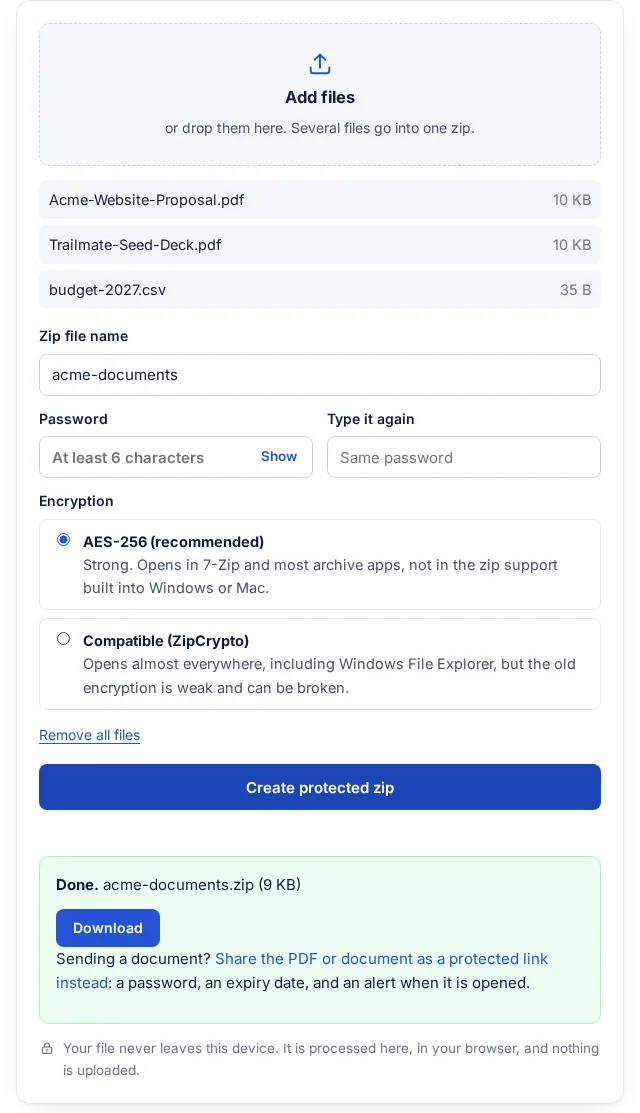
Add your files, choose a password, and download a password protected zip. It is built in your browser, so the files stay on your device, and the default encryption is AES-256.
How to password protect a zip file
A locked zip in three steps
Works in any modern browser, on a computer or a phone.
-
Step 1
Add the files
Pick one file or many. They all go into one zip.
-
Step 2
Set the password
Type it twice and choose the encryption: AES-256, or the older compatible kind.
-
Step 3
Download the zip
Save it and send it. Share the password a different way, such as a text message.
Opening a password protected zip: what works where
There are two kinds of zip encryption, and the apps built into Windows and macOS only understand the old one. This matters for whoever receives the file.
| Feature | AES-256 | Compatible (ZipCrypto) |
|---|---|---|
| Strength | Strong | Weak: known attacks can break it |
| Windows File Explorer | Does not open it; use 7-Zip | Opens it and asks for the password |
| Mac Archive Utility (double-click) | Does not open it; use an archive app | Recent macOS versions ask for the password; if not, use an archive app |
| 7-Zip, and most archive apps | Opens it | Opens it |
Choose AES-256 when the contents matter and the person can install a free app such as 7-Zip. Choose the compatible option only when convenience matters more than strength.
In both kinds, the names of the files inside the zip can be listed without the password. Only their contents are locked. If a file name gives too much away, rename it before zipping.
How to lock a zip file on your own computer
Windows: 7-Zip password protect a folder
Windows can make a zip, but it cannot add a password to one. The free 7-Zip app can:
- Install 7-Zip from its official site, 7-zip.org.
- Right-click the folder or files, open the 7-Zip menu (on Windows 11, it may be under Show more options), and choose Add to archive.
- Set Archive format to zip, type the password twice, and set Encryption method to AES-256.
- Click OK. The new zip is next to the original folder.
Mac: with Terminal
- Open Terminal and go to the folder that holds your files, for example
cd ~/Desktop. - Type
zip -er protected.zip FolderNameand press Return. - Type the password twice when asked.
The zip that Terminal makes uses the old, weak encryption, so it opens anywhere but protects less. For AES-256 on a Mac, use the tool on this page or an archive app that supports it.
Zip files and FileSeen links
FileSeen does not host zip files: a zip cannot be uploaded to share as a link. This tool only makes the zip on your device for you to send however you like. If what you are sending is a PDF or a document, you can share it as a protected FileSeen link instead, with a password, an expiry date and an email when it is opened, and no zip to unpack.
FAQ
Password protected zip questions
Is this zip tool free?
Yes. No sign-up and no limits beyond what your browser can hold in memory, which is roughly a few hundred megabytes.
Are my files uploaded?
No. The zip is built in your browser with zip.js. You can confirm in your browser's developer tools that no request carries your files.
Why can't Windows open my password protected zip?
Windows File Explorer only supports the old ZipCrypto encryption. Open an AES-256 zip with 7-Zip, or make the zip with the compatible option.
How do I password protect a zip file I already have?
Unpack it, then add the files here and set a password. A zip cannot have a password added from the outside.
How safe is a zip password?
With AES-256 and a long password, very safe. The older ZipCrypto encryption is weak and can be broken with known attacks, so use it only when the person cannot install an app that opens AES-256 zips.
Can I share the zip as a FileSeen link?
No. FileSeen does not accept zip uploads. PDFs, documents, decks, spreadsheets, images and audio can all be shared as links.
What if I forget the password?
There is no way to recover it. Keep the original files until you are sure the zip opens.
More from FileSeen