EXIF remover
Remove EXIF data and GPS location from photos
Remove EXIF data before you post or send a photo: the GPS location, the date taken, the camera and its serial number. See what a photo gives away, then download a clean copy that looks exactly the same. Nothing is uploaded.
How it works
How to remove EXIF data from a photo
Nothing to install. The photos never leave your device.
-
Step 1
Choose the photos
Pick or drop up to 20 JPG or PNG photos. On a phone, pick them from your photo library.
-
Step 2
See what is inside
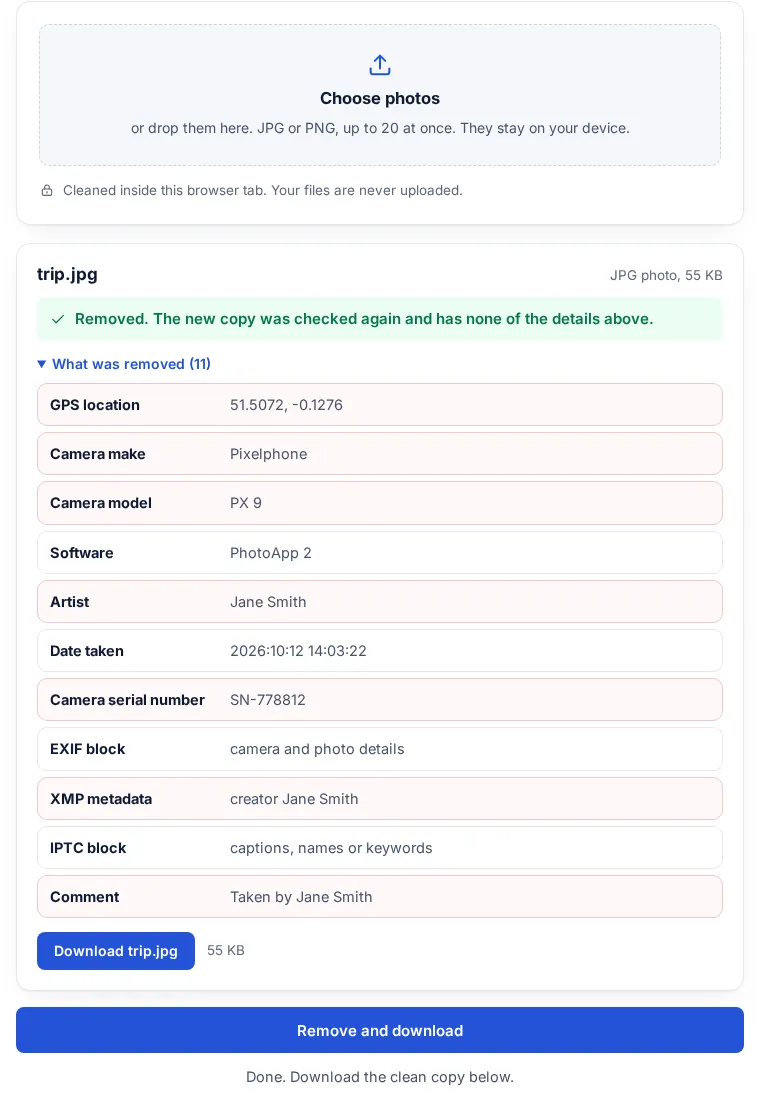
Each photo shows what it carries: GPS location, date taken, camera model, serial number.
-
Step 3
Download clean copies
The details are removed, the new copy is checked again, and you download it one by one or as a zip.
What EXIF data a photo carries
A phone or camera writes these details into every JPG it saves. Anyone who gets the original file can read them.
| Detail | What it is | After cleaning |
|---|---|---|
| GPS location | Latitude, longitude and altitude where the photo was taken. | Removed |
| Date and time taken | The moment the shutter was pressed, and the time zone. | Removed |
| Camera and lens | Make, model, lens and settings such as exposure and ISO. | Removed |
| Serial numbers | The camera body or lens serial number, which can link photos to one device. | Removed |
| Software and edits | The app that saved the photo, XMP edit history, IPTC captions and comments. | Removed |
| Rotation flag | Which way up the photo is shown. | Kept in JPG, so the photo stays upright |
| The picture | The pixels themselves. | Copied byte for byte: no new compression, no quality loss |
Why the GPS location in a photo matters
Apple's personal safety guide explains that the Camera app embeds the coordinates where each photo and video was taken, and that the people you share them with may be able to see where it was taken. A photo of a new flat, a child at school or an item for sale can give away an address.
How to remove GPS from photos on an iPhone
- For one share: select the photo, open the Share Sheet, tap Options and turn off Location. Location Not Included then shows above the Options button.
- For every new photo: go to Settings, Privacy and Security, Location Services, Camera, and tap Never.
- For a photo you already have as a file: clean it here. iPhone photos in HEIC format must be converted to JPG first.
Source: Apple Personal Safety User Guide, Manage location metadata in Photos.
Your photos are never uploaded
This EXIF remover reads and rewrites the file inside your browser tab, so the photo never leaves your phone or computer. You can turn off your internet connection after the page has loaded and it still works.
Limits
- JPG and PNG only. Convert HEIC photos to JPG first; videos are not supported.
- It does not hide what the picture itself shows, such as a street sign or a house number. Crop or blur those before you share.
- Photos inside Word, Excel and PowerPoint files are cleaned by the metadata remover, together with the author name.
FAQ
EXIF data questions
How do I remove EXIF data from a photo?
Choose the photo at the top of this page. It shows the EXIF details it found, removes them and gives you a clean copy to download. The picture is copied byte for byte, so it looks exactly the same.
How do I remove the location from a photo?
Clean it here: the GPS latitude, longitude and altitude are removed with the rest of the EXIF data. On an iPhone you can also turn off Location under Options in the Share Sheet before you send a photo.
Does removing EXIF data reduce photo quality?
No. Only the EXIF, XMP, IPTC and comment blocks are taken out. The image data is not compressed again.
Can I remove EXIF data from many photos at once?
Yes, up to 20 at a time. Download each clean photo, or all of them in one zip.
Are my photos uploaded?
No. Everything happens inside your browser tab. No part of any photo is sent anywhere.
Can I remove EXIF data on my phone?
Yes. Open this page in your phone's browser, pick the photos from your library, and save the clean copies. It works on iPhone and Android.
Is it free?
Yes. No sign-up, no limit and no watermark.
Next: send it as a link
Sending the clean photos to someone? Put them in one link instead of a long email. It opens in any browser, and you can add a password or an expiry date.
Related tools