Make PDF searchable
Make a PDF searchable with free OCR
Make a PDF searchable in your browser. First see which pages are real text and which are only a picture of text. Then make the scanned pages searchable with OCR: the file looks exactly the same, but its words can be selected, searched and read by checkers. Nothing is uploaded.
How it works
How to make a scanned PDF searchable
Nothing to install, and nothing leaves your computer.
-
Step 1
Choose the PDFs
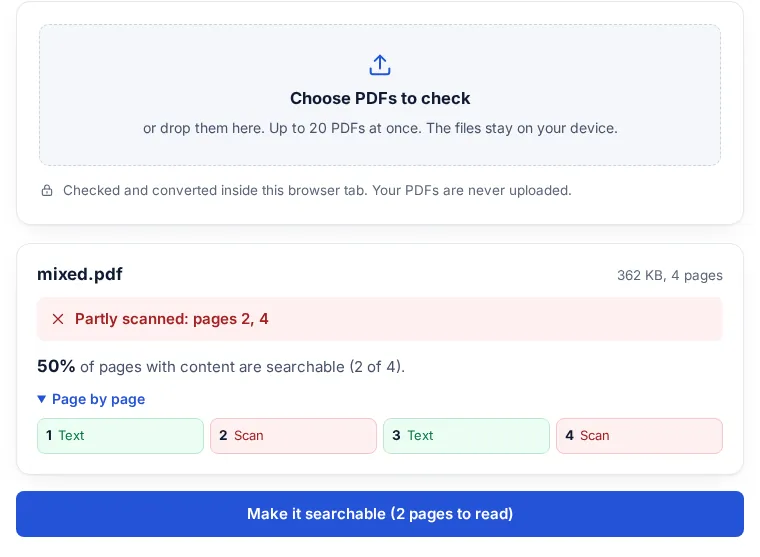
Pick or drop up to 20 PDFs. Each one is checked page by page.
-
Step 2
Read the verdict
Searchable, scanned, or partly scanned with the page numbers, and the share of pages that can be searched.
-
Step 3
Make it searchable
OCR reads the scanned pages on this device and adds an invisible text layer. Download the new PDF.
How to tell if a PDF is scanned
A page counts as searchable when it has at least 20 characters of real text. The file verdict is Searchable, Scanned, not searchable, or Partly scanned with the page numbers.
| Result | What it means | What to do |
|---|---|---|
| Text | The page has real text that can be selected, searched and read by checkers. | Nothing to do. |
| Scan | The page is only a picture. It may show words, but no software can read them. | Make it searchable adds the text. |
| Text + picture | Some real text and a large picture. Words inside the picture are not searchable. | Check the picture by eye. The page is left as it is. |
| Scan + text layer | A scan that already has a hidden text layer from earlier OCR. | Nothing to do: it is searchable. |
| Blank | No text and no pictures. | Nothing to do. |
Why is my PDF not searchable?
Because its pages are pictures. A scanner, a phone scanning app or a print-to-image step saves each page as a photo of the text, with no letters inside. Search, copy and checkers then find nothing on those pages until OCR adds a text layer. That matters for:
- Plagiarism and similarity checks: a PDF that is a picture of text gives the checker nothing to read. Durham University's Turnitin guide says this error typically happens with an image or a scanned file, and that PDFs in image format are not accepted (Durham University). Check a batch of submissions here to find the scans fast.
- Court filings: several US courts require text-searchable PDFs; the Nevada bankruptcy court explains how to OCR a scan before filing. The court PDF checker tests the other e-filing rules.
- Finding things later: search in a PDF reader, a document system or your computer skips every scanned page.
Why the PDF is never uploaded
Scans are often the papers people least want to share: signed contracts, IDs, medical forms, student work. This tool opens the PDF, reads the text with OCR and writes the new file inside the browser tab. The OCR engine and its English language data load from this site; no part of the file is sent anywhere. You can switch off your internet connection after the page loads and it still works.
Limits
- OCR accuracy depends on the scan. The OCR engine used here (Tesseract) works best on scans of at least 300 dpi with straight text lines, according to its own documentation. Faint, skewed or low-resolution scans and phone photos of pages give more mistakes.
- Handwriting is not supported. Printed text only.
- The OCR reads English. Other languages that use the Latin alphabet come out with mistakes on accented letters; other alphabets are not read.
- Searchable is not the same as accessible. For a screen reader the file still needs tags, a language and a title: check it with the PDF accessibility checker.
- Pages with real text and a large picture are left as they are. A PDF with security settings must have them removed before it can be changed.
- OCR takes a few seconds per page on a typical computer, longer on a phone.
FAQ
Scanned PDF questions
How can I tell if a PDF is scanned?
Choose the PDF at the top of this page. Each page is marked Text, Scan, Text plus picture, or Blank, and the file gets a verdict: Searchable, Scanned, not searchable, or Partly scanned with the page numbers. By hand: try to select a word in the PDF. If you cannot, that page is a picture.
How do I OCR a PDF?
Choose the PDF at the top of this page and press Make it searchable. Each scanned page is read with OCR (the Tesseract engine) inside your browser, and the words are written onto the page as invisible text. Download the new PDF.
How do I make a scanned PDF searchable?
Check it here, then press Make it searchable. OCR reads each scanned page in your browser and adds the words as an invisible layer on top of the picture. The PDF looks the same, and the words can now be selected, searched and copied.
Will the PDF look different after OCR?
No. The scanned picture stays exactly as it was. The text layer is invisible, and pages that already had text are not changed.
Is my PDF uploaded?
No. Checking and OCR both run inside your browser tab. No part of the file is sent anywhere.
Can I make a PDF searchable on a Mac or phone?
Yes. It runs in the browser, so it works on a Mac, Windows, Linux, iPhone and Android. OCR is slower on a phone.
Can I check many PDFs at once?
Yes, up to 20 at a time, for example a batch of student submissions. Each file gets its own verdict and its own searchable copy.
Does it read handwriting or other languages?
No. It reads printed English text. Handwriting and other alphabets are not read.
Is it free?
Yes. No sign-up, no page limit, no watermark.
Next: send it as a link
Now that the PDF is searchable, send it as a link instead of an attachment. It opens in any browser, on a phone too, and you can add a password or an expiry date.
Related tools