Image to QR code
Image to QR code: turn any photo into a code that opens it
Upload a photo, picture or screenshot and get a QR code for it. Anyone who scans the code sees the image full size on their phone, with nothing to install, and you can see how many people scanned it.
Swap the file anytime. The printed QR code keeps working.
Uploading. Keep this page open.
Where should the code go?
File uploaded. Enter your email to get your link.
Enter the code
Sent to . It expires in 10 minutes.
Your link is ready
Free: every feature on 3 links, including who opened it and time on each page.
Opening it from here does not count as an open.
See when it is seenYour private stats page. Keep it to yourself: anyone with it can see the stats.Both links are in your email too. Upgrade to Pro.
How to turn an image into a QR code
From a photo to a printed code in three steps
The code holds a short link, and the link opens your image.
-
Step 1
Upload the image
A photo, a picture, a poster, a screenshot or a scan, as JPG, PNG or WebP.
-
Step 2
Save the QR code
Download the code as a PNG and put it on a card, a print, a poster or a slide.
-
Step 3
People scan, the image opens
The camera finds the code, the photo opens full size in the browser, and each scan is counted.
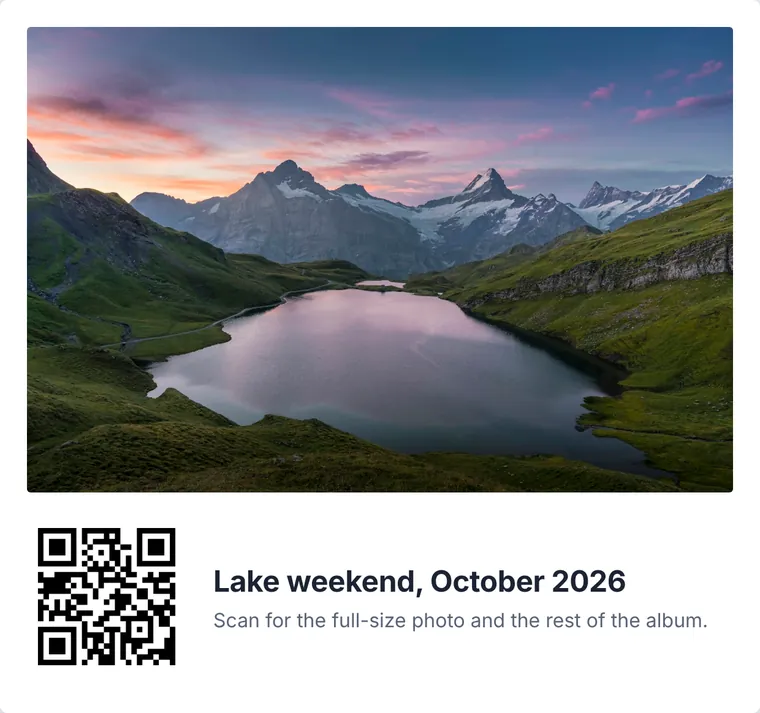
A QR code cannot hold the picture itself
A QR code stores a few thousand characters at most, far too little for a photo. So an image QR code holds a short link, and the link opens the picture. That is why the image is uploaded first: the code points at it.
It also means the code stays small and easy to scan however big the photo is, and the photo can be changed later without printing a new code.
What people put behind an image code
- Prints and photo cards: the full-size photo, or the whole album, behind a small code on the back.
- Posters and signs: the high-resolution version, a floor plan or a map.
- Products and packaging: a picture of how it should look when assembled.
- Art and exhibitions: a larger view of the work, or the artist's notes as an image.
- Events and weddings: the photos after the day, shared with every guest from the table card.
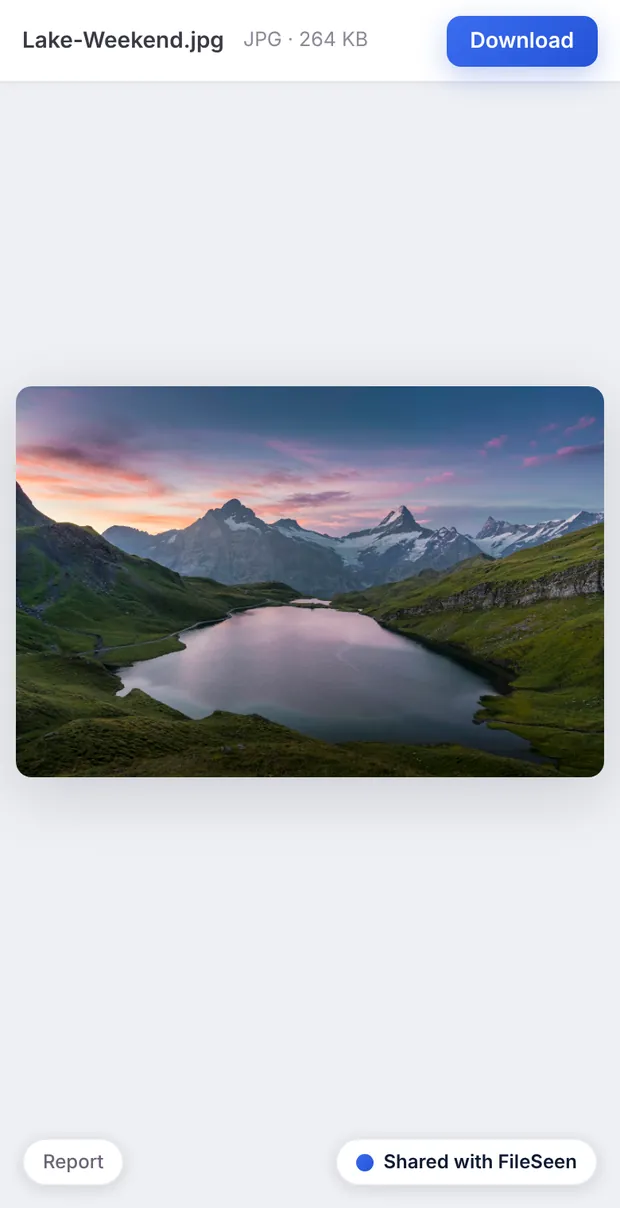
Several photos behind one code
For a set of pictures, add more files to the same link. Up to 400 files can sit behind one link, shown as a list, thumbnails or a slideshow, so one printed code can open a whole photo album. More on this on the features page.
Change the image after printing
Replace the file at the same link and the printed code opens the new picture. Turn downloads off if people should only look at the photo, or set an expiry date for a code that should stop working after an event. All of this is on the free plan, which has every feature on 3 links.
FAQ
Image to QR code questions
Can I turn a picture into a QR code?
Yes. Upload the picture at the top of this page, confirm your email with the 6-digit code, and save the QR code as a PNG. Scanning it opens the picture on any phone.
Is image to QR code free?
Yes. The free plan makes codes for 3 links with no time limit, and every feature is included. Deleting a link does not free a slot.
Can one QR code show several photos?
Yes. Add more images to the same link and the code opens them as an album, with thumbnails or a slideshow.
Will the QR code stop working?
The printed code never changes. It stops working only if you delete the link or set an expiry date. Without either, it keeps opening the image.
Can I see how many people scanned it?
Yes. Every scan that opens the image is counted on the link's stats page, by day and by country, without identifying who scanned.
I have a picture of a QR code. How do I read it?
That is the opposite job: reading a code. On most phones, open the photo in the gallery app and use its scan or lens button, or point the camera at the code on another screen.
More QR codes